Activate ANSVIS Server
After connecting to a server, you will be prompted to activate a license.
Activation Options
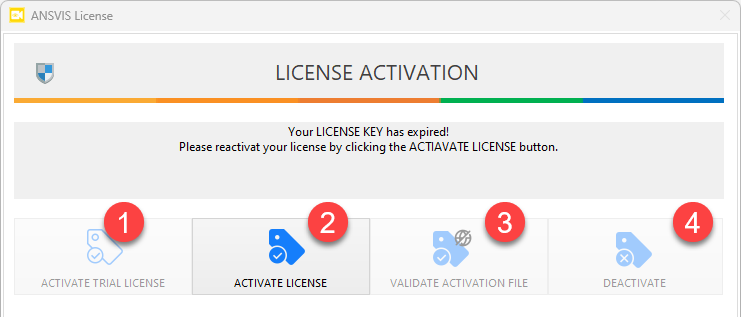
Trial License
Click Activate Trial License to start a 90-day trial period.
Full License
Click Activate License to activate the server with a valid license key.
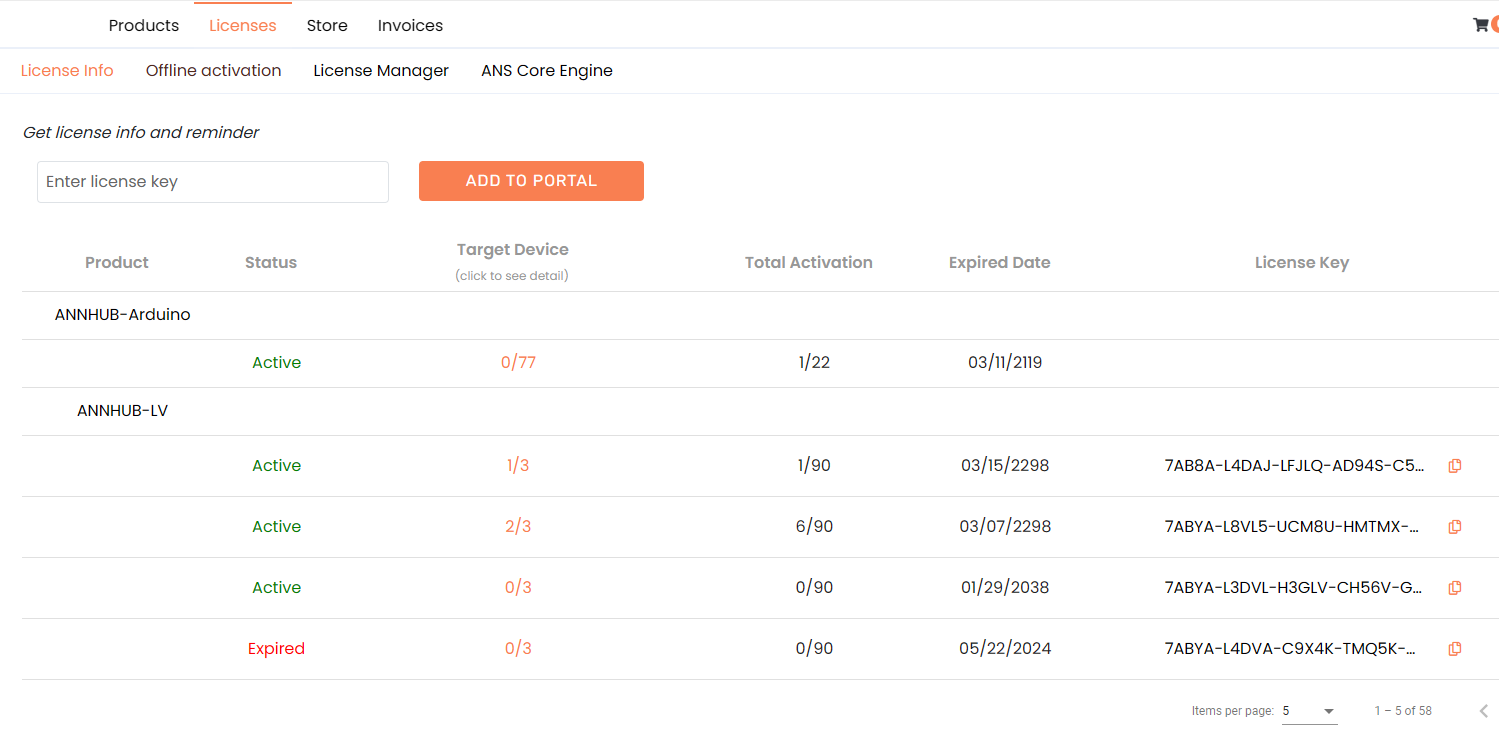
Upon purchasing a license key, you may import it to your portal to enable license info and receive email reminder when license is about to expired. License key can only be imported in one portal
Online Activation
If your server machine has internet access, you can easily activate it by:
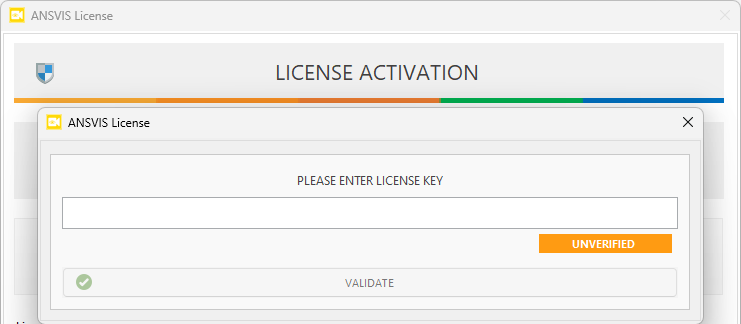
- Enter your license key
- Click
Validateto complete the server activation
Offline Activation
If your server machine does not have internet access.
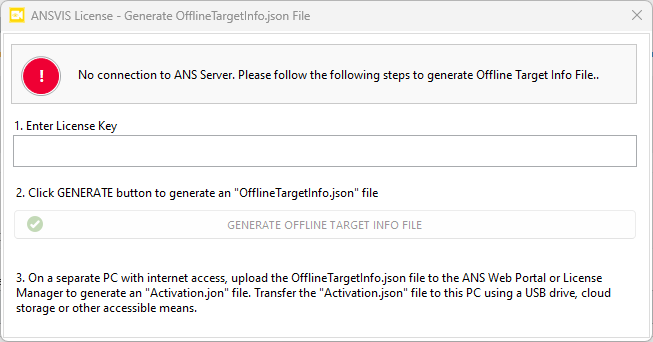
Step 1: Generate OfflineTargetInfo.json
The OfflineTargetInfo.json file contains information about the server hardware ID and license key to help verify your license and hardware with the ANSCENTER License System.
- Enter your license key.
- Click
Generate Offline Target Info File. - Save the
OfflineTargetInfo.jsonfile to a USB or other portable medium.
Step 2: Generate activation.json
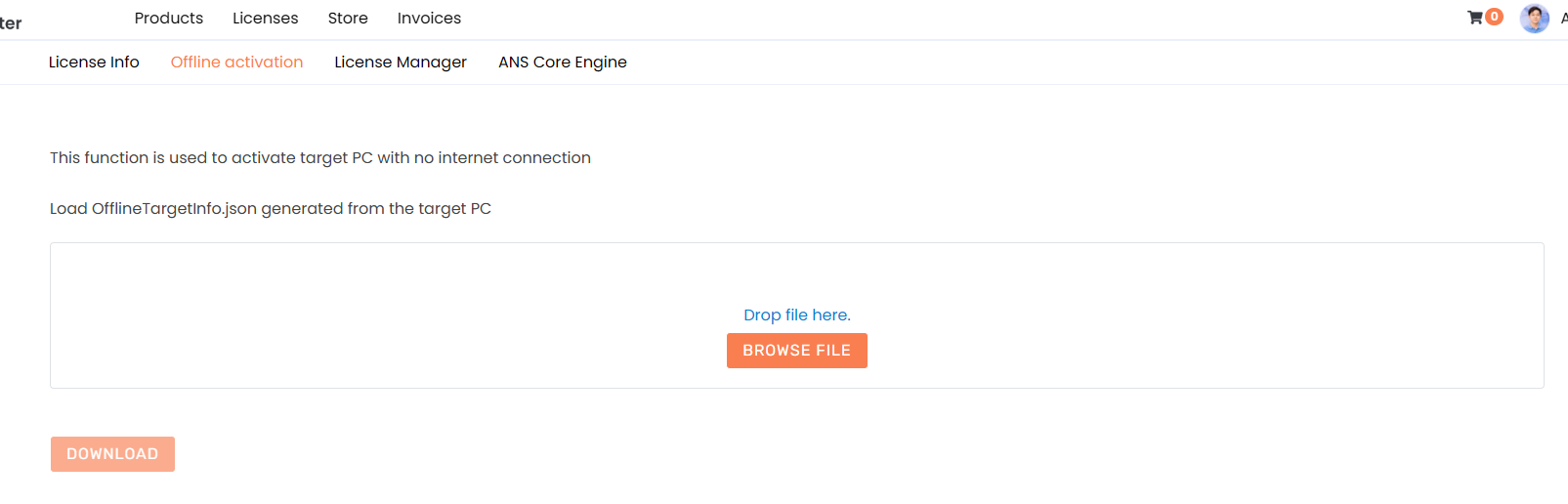
The activation.json file will encrypts the activation key to your server ID and registers it for management in the ANSCENTER License System. Only that server machine can use the activation.json file to activate the software.
On another computer with internet access:
- Go to the ANS Portal.
- Navigate to
License > Offline Activation - Upload the
OfflineTargetInfo.json. - Click
Downloadto download theActivation.jsonfile.
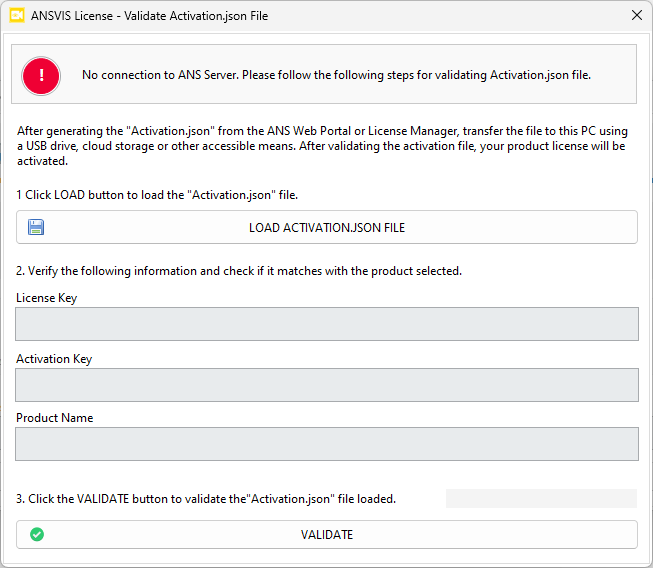
Step 3: Validate
- Transfer the
activation.jsonback to the ANSVIS. - Click
Validate Activation File.
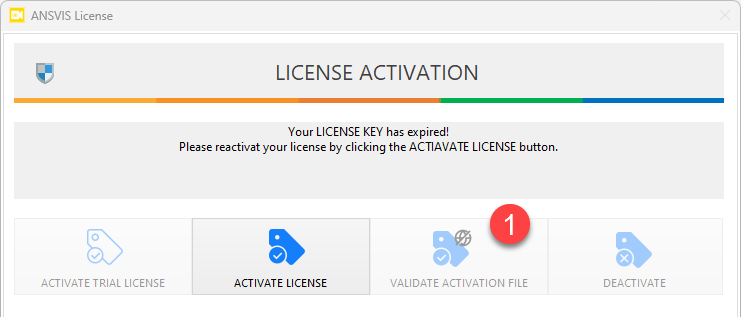
- Load the
activation.jsonfile and click Validate to activate the server