Event Storage
By default, events are stored in ANSVIS servers. By going to the Setting page, you have some options to control how events are kept
Control Event Records

The event card is where you control the quality and quantity of events:
-
Max Events: This is the maximum number of events to keep in server. Once it reaches the limit, ANSVIS will automatically overwrite the oldest events to make room for new ones. -
Max Image Width: Define the event image resolution. Changing the event image resolution only affects quality of event image (output), meanwhile the system still to use the original high-resolution images (input) from camera for AI analysis. This helps reduce storage usage and improves performance when retrieving event images from the server. -
Delete event record: By clicking on theDelete Event Records, you'll be able to delete events for each AI tasks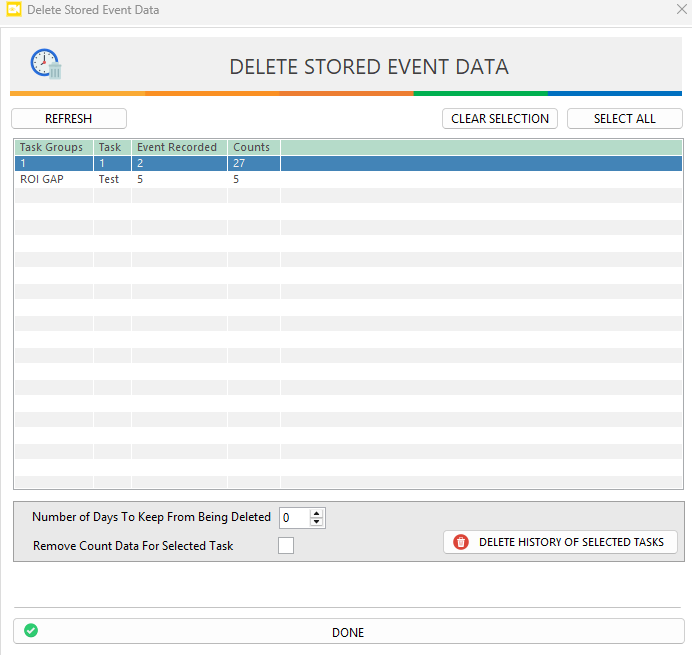
- Select one or more AI tasks using the
Ctrlbutton - Set the
Number of days to keepso the system will only remove events older than X days. - Check
Remove Count Dataif you want delete the summary counting data as well - Press
Delete History Of Selected Tasksto delete event recorded based on your selection
- Select one or more AI tasks using the
Relying solely on the event log database is not advisable due to its limitations in event record, distributed storage for large scale applications and the need for further event filtering and verification.
For optimal accuracy and scalability, it is best to use the event log database as a verification layer—thoroughly checking the accuracy and completeness of AI Task data—before exporting and storing the validated data in an external database.
Change Event Storage Location
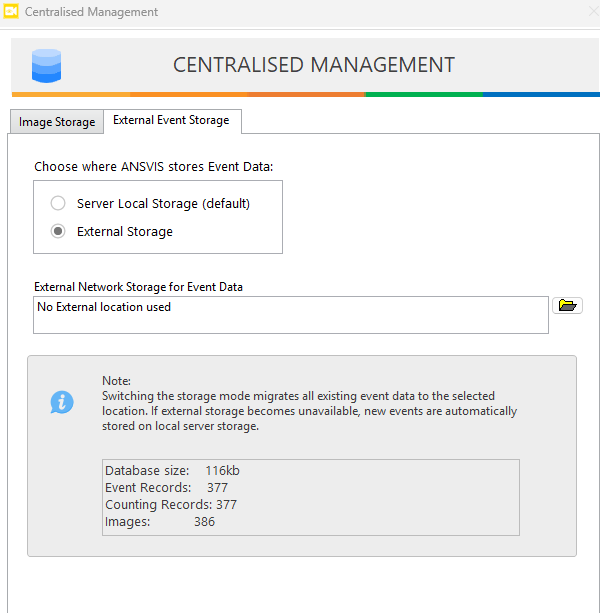
You can change event storage location instead of using default sever storage. This helps prevent system drive overload and gives users flexibility to store events on larger or external drives.
-
Open
Settings>Centralize Management>External Storageto configure the storage path. -
Choose either:
- Server Local Storage (default)
- External Storage: to manually choose the storage location
-
When switching to a new location:
- All existing event files are automatically copied from the old location to the new one.
- All new events generated after the switch will be saved to the new location.
-
After clicking Apply, the migration process starts. You must wait until the process is fully completed before closing the window or performing other operations.
If the external storage becomes unavailable (unplugged, network path lost, offline), the system automatically falls back to saving new events on the default storage. Existing files in the external path remain untouched.